
Bookings

The full calendar of everything booked. View, create, reschedule and manage every appointment.
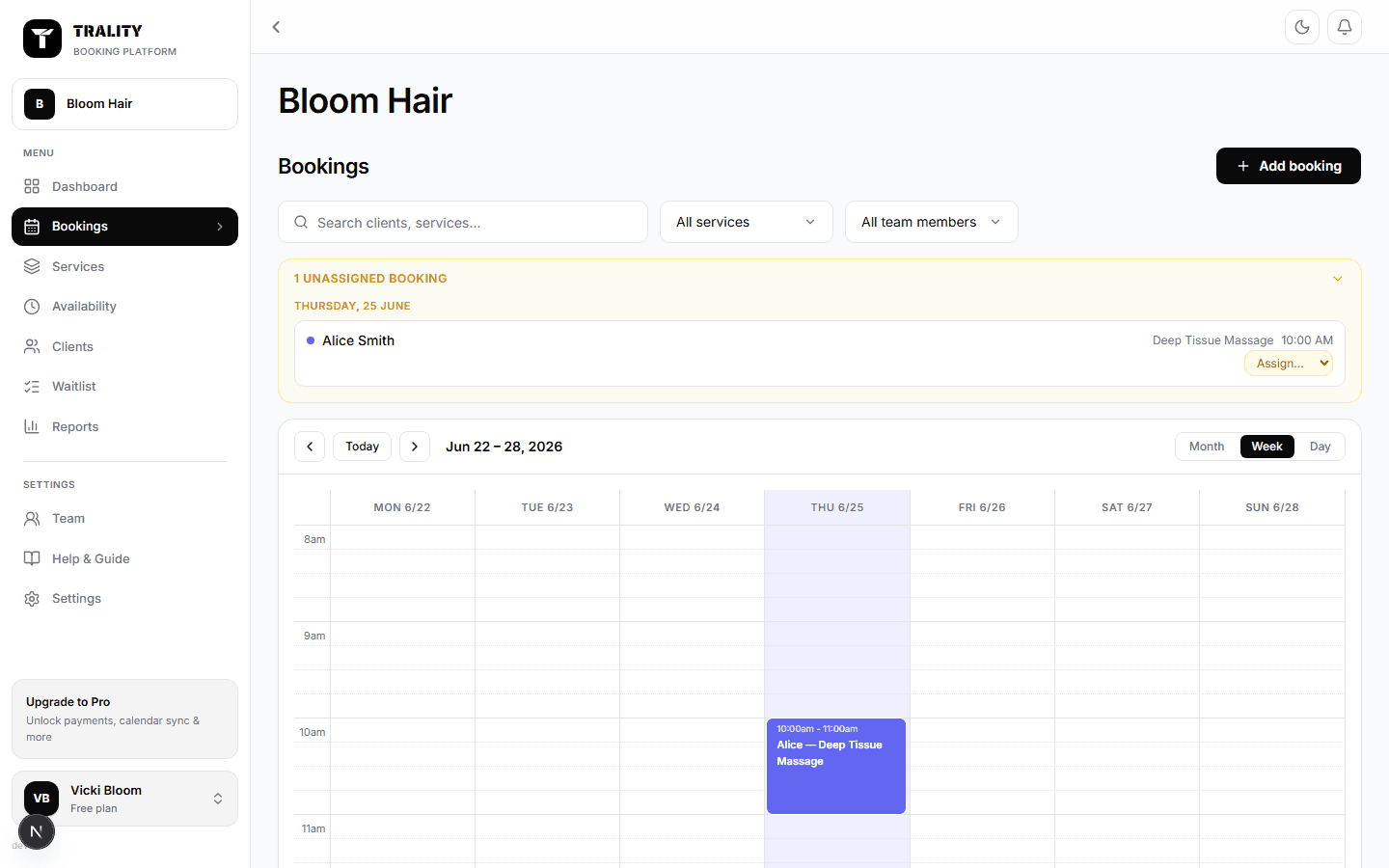
Bookings screen

What you can do here

  • Switch between day, week, month and list views
  • Create a booking with one or more services, a client and a team member
  • Drag a booking to move it — between times, or between team members
  • Filter by team member and by status, or search by client, email or service
  • Open any booking for its details, to change it, message the client or add it to a sale

What's on this screen

Search and filters

The search box matches a client's name or email and the service name. The pills next to it filter by team member — Everyone, or one person at a time. The coloured chips filter by status: Confirmed, Pending, Completed and Cancelled. Cancelled bookings stay hidden until you tick that chip, so the calendar shows the day you're actually working.

Unassigned bookings

A banner appears when someone booked without choosing a team member. Each row has an Assign dropdown so you can put a name to it there and then, rather than opening every booking.

Day, Week, Month and List

Day gives a column per team member — the view for checking who's free. Week and Month show the whole diary. List drops the grid for rows you can scan, with Today, Upcoming and All tabs. Full screen hides the rest of the app and fits the grid to your screen exactly, with no scrolling.

The calendar grid

Each booking shows its time, the client and the service, in the service's colour. Closed hours are shaded and can't be booked into. Pending bookings are outlined; cancelled ones are struck through. On a phone, press and hold a booking for a quick preview.

Add booking

Opens a panel with three tabs. Appointment — choose one or more services (durations add up), a team member or First available, then the date and start time. Start times follow the booking interval set under Availability. Client — name, plus email and phone if you have them. Without an email, they simply don't get a confirmation. Payment — request money up front. You'll see each service's price and the total, and can ask for a deposit, the full amount or a custom figure. Needs Stripe connected.

Moving and resizing

Drag a booking up or down to change its time, or sideways on the Day view to hand it to a different team member. Drag its bottom edge to change the length. Nothing saves until you press Save on the bar that appears, so several changes can be lined up and confirmed together.

The booking panel

Click any booking for its details: client, contact, service, price and payment state. From here you can change the booking, message the client (offered only when they gave a real email address), add it to a POS sale, mark it completed or a no-show, or cancel it.

This week (right-hand rail)

Bookings and money booked in for the period you're viewing, then how much of your rostered time is filled — 19h booked of 120h rostered, say. That's the honest read on whether the roster matches demand.

Next up, status counts and gaps

Next up is the next appointment due, with who's taking it. Under that, a count by status for the period. Gaps worth filling lists the free stretches long enough to sell, with the staff member who's free — the list to work from when you want to fill a quiet afternoon.