
Dashboard
Your home base — a snapshot of today's appointments, key stats and quick actions the moment you sign in.
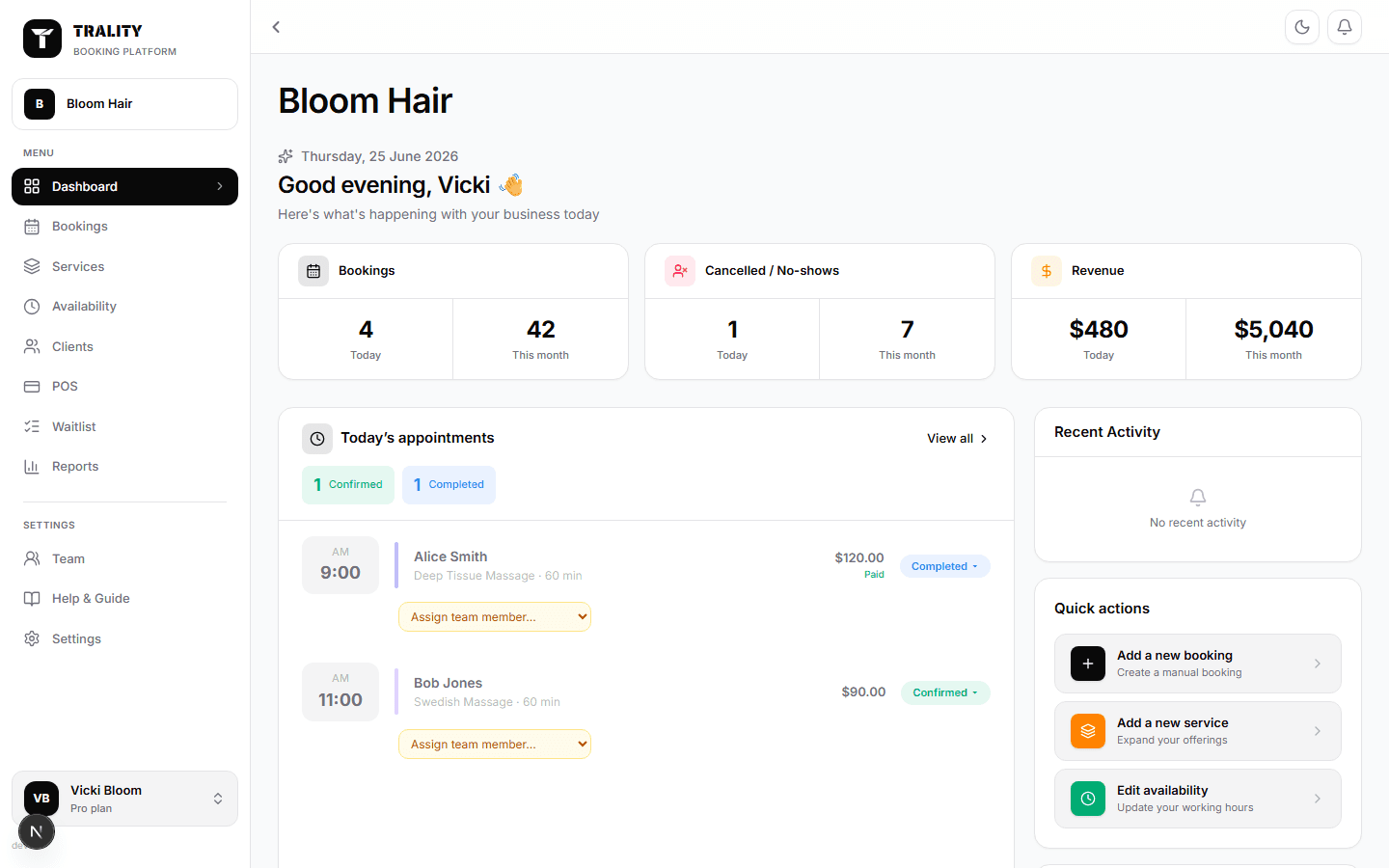
What you can do here
- See today's appointments at a glance
- Track bookings and revenue for the month on the stat cards
- Use Quick actions to add a booking, client or service in one click
What's on this screen
Revenue today
Money actually received today — deposits, payments taken at booking and anything rung up on the POS. Underneath it is the running total for the month. It counts money received, not the value of what's in the diary, so an unpaid appointment tomorrow doesn't appear here.
Bookings
How many appointments start today, whatever their status — confirmed, pending, completed or cancelled. It's a count of the day's diary, not of money.
Cancellations
Appointments that were booked for today and then cancelled. Worth watching next to Bookings: a day with a healthy count and three cancellations is a different day to one with none.
Revenue (last 7 days)
A week of takings drawn day by day, with the total for the period beside the title. Use it to see the shape of your week rather than an exact figure — Reports is where the precise numbers live.
Revenue by service
Which services brought that money in over the same seven days. A service that fills the diary but barely shows here is one to look at.
Today's appointments
Everything booked for today in time order, with the client, service, duration, price and payment state. The chips at the top count them by status. Any booking without a team member shows an Assign dropdown so you can hand it to someone without leaving the page. Click a row to open the full booking; View all opens the calendar.
Recent activity
The last things to happen in your account — new bookings, cancellations, payments — newest first, so you can catch anything that changed while you were with a client.
Quick actions
Shortcuts to the three things you'll add most often: a booking, a service, or your working hours. They open the same forms you'd reach from Bookings, Services and Availability.
Your booking page
Your public link, with Copy to put it on your clipboard, Preview to see what clients see, and Share to send it. This is the address to put in your Instagram bio or on a QR code — the Promote page has ready-made versions per channel.
