
Waitlist

Capture demand for fully-booked group classes and offer spots when they open up.
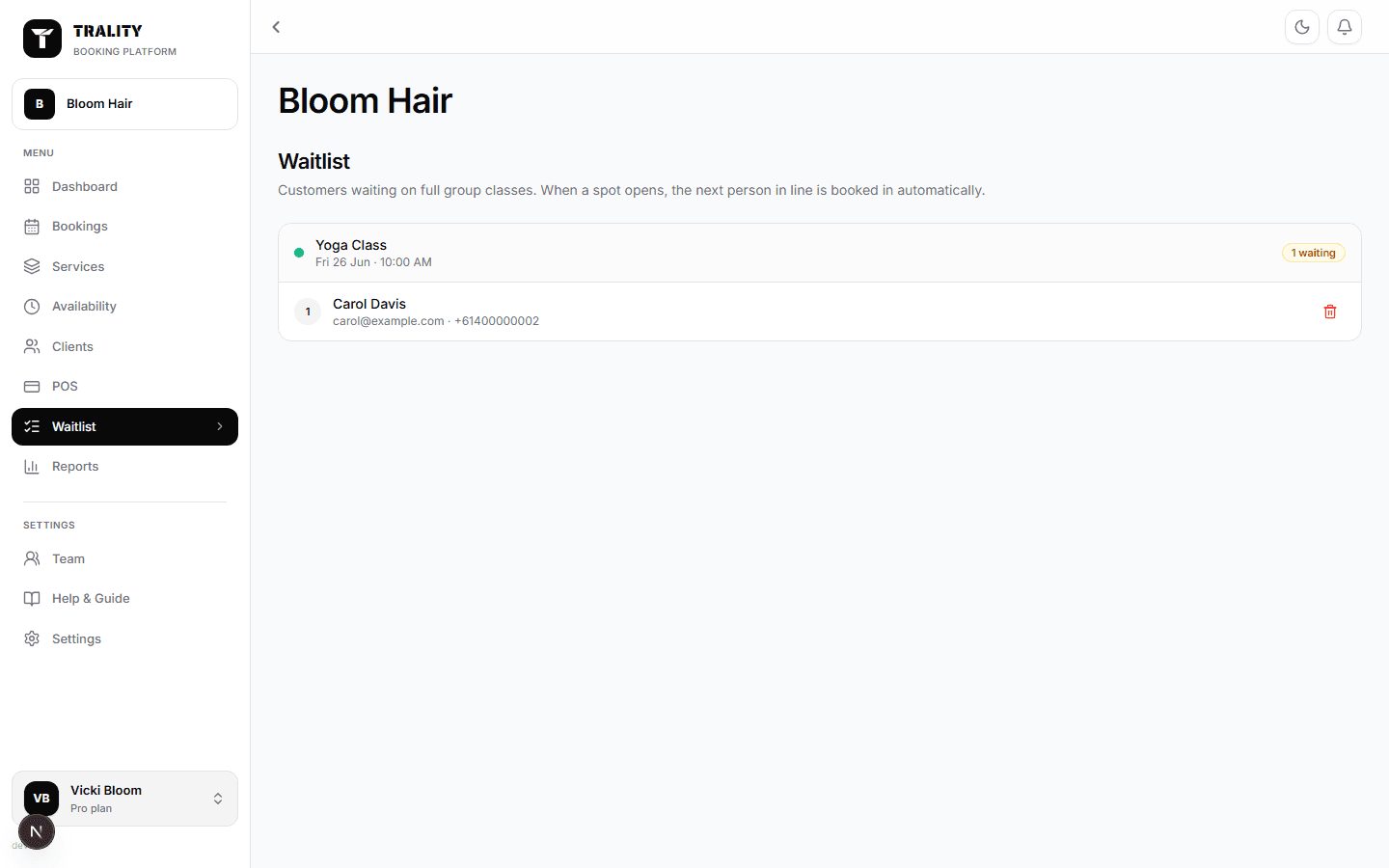
Waitlist screen

What you can do here

  • See who's waiting, session by session, in the order they'll be offered
  • Move someone up or down the queue
  • Offer a spot to one person or the whole queue
  • Book someone in straight away, or take them off the list

What's on this screen

The figures along the top

How many people are waiting and across how many sessions; how many have been offered a spot and are yet to reply; when the next full session starts; and the longest anyone has been waiting.

Session cards

One card per full session, showing the service, when it runs, and how many are waiting. A session starting within two days is flagged, since that's when a free spot needs filling quickly.

The queue

Underneath each session, the people waiting in the order spots will be offered — position, name, contact details and any note they left when joining.

Move up and down

The arrows reorder the queue. Whoever sits at the top is who the automatic promotion takes next, so this is how you give a regular first refusal.

Waiting or Offered

Each person shows their state: Waiting, with how long since they joined, or Offered, with how long since you asked. Nothing is reserved by an offer — it's an invitation, and the first to book takes it.

Offer spot and Offer to all

Offer spot emails one person; Offer to all emails everyone in that queue. Both say plainly that the spot isn't held. Use one when you want to reward the top of the list, the other when you just need the class filled.

Book in

Puts that person straight into the diary and emails their confirmation, whoever else is ahead of them. It doesn't check whether the session is full — you're looking at it and deciding to fit them in.

What happens automatically

If a client cancels, the person at the top of that queue is booked into the free spot and emailed, with no action from you. The line at the foot of each card names who that will be.