
Availability
Control when you're open for bookings — your weekly hours, breaks and days off.
What you can do here
- Set the hours your business is open, day by day
- Set each team member's own hours from the same grid
- Add breaks that split a day into bookable windows
- Override specific dates — holidays, late nights, leave
- Set the booking interval, and take your booking page offline
What's on this screen
Whose hours you're editing
The pills at the top choose the scope. The first is the whole business — the outer limit, which nobody can be booked outside. The rest are your team, each showing how many days they work; their hours sit inside the business hours. Pick one and the grid below loads their schedule. Save before switching, as the two are stored separately.
The summary line
Days open, total bookable hours a week, and how many date overrides you have — a quick sanity check that the week below says what you meant.
Weekly hours
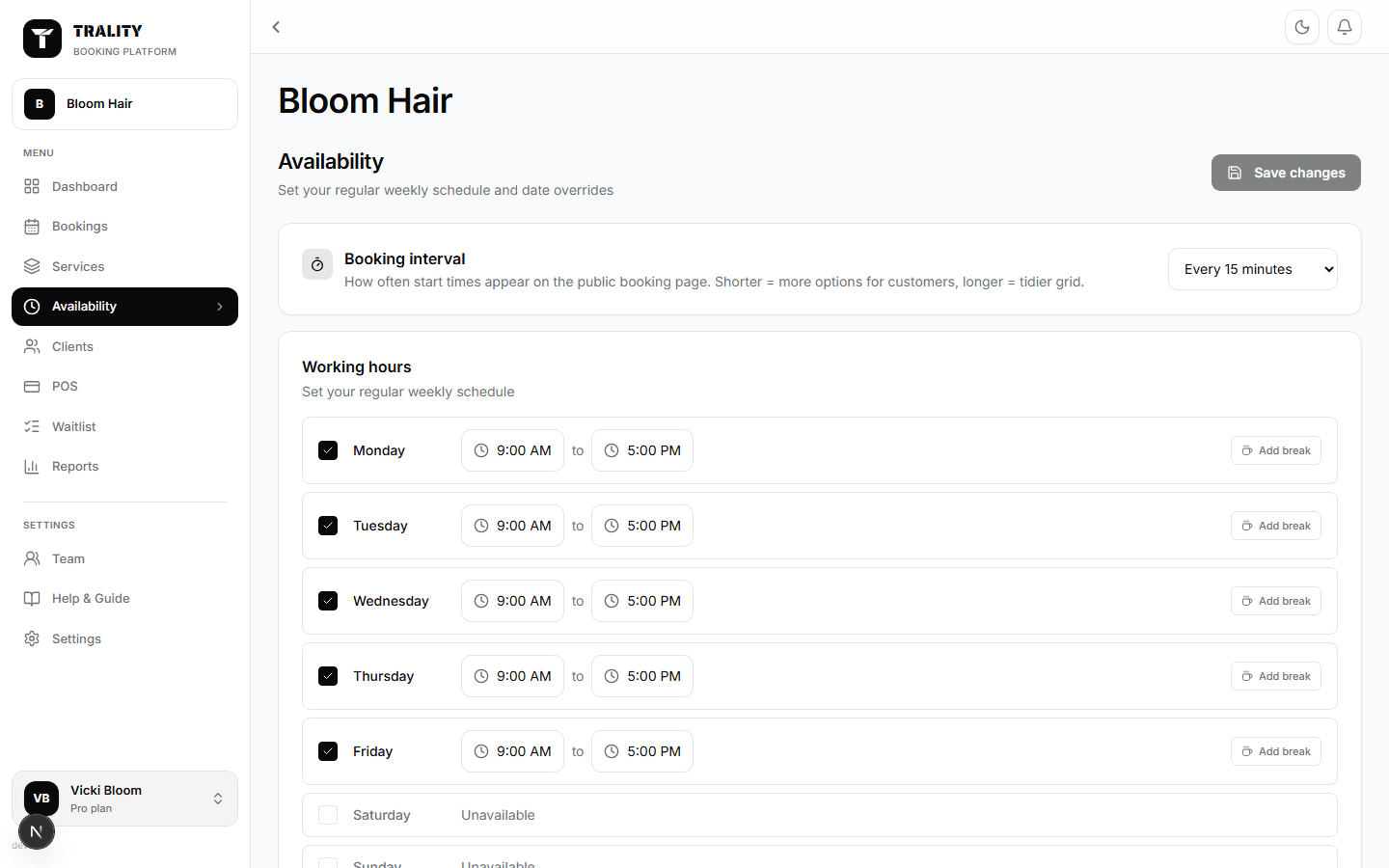
One row per day. Tick a day to open it and set start and finish times; unticked days are closed and can't be booked. Each row shows the hours it adds up to. Copy Monday to all applies Monday everywhere; the copy button on a row does the same from that day.
Breaks
A break carves time out of an open day — a lunch break turns one long window into two bookable ones. Add as many as a day needs; they appear as chips under the row and their times can be edited in place.
Date overrides
Overrides beat the weekly schedule on a specific date: closed all day for a public holiday, or custom hours for a late-night event. They apply business-wide, whoever is selected above, and each shows its date, whether you're closed and the hours if not.
Week at a glance
Your week drawn on one scale, with breaks punched out of each bar, so a lopsided week or an accidentally open Sunday is obvious. Totals sit beside each day, with the week's bookable hours underneath.
Booking interval
How start times are offered on your booking page. At 30 minutes clients see 9:00, 9:30, 10:00; at 15 they see 9:00, 9:15, and so on. It doesn't change how long a service takes — only where appointments can start.
Accept bookings
The master switch for your booking page. Turn it off and the page goes offline — clients can't book, and existing bookings and settings are untouched. Turn it back on when you reopen.
